Hey there! If you’re reading this, chances are you’re trying to figure out how Fidelity’s Bill Pay service actually works. I’ve been using Fidelity for years now, and their Bill Pay feature has honestly changed how I manage my monthly expenses. No more juggling different payment portals or (ugh) writing checks!
In this guide, I’ll walk you through everything about Fidelity Bill Pay – from setup to advanced features Whether you’re a new Fidelity customer or just haven’t explored this feature yet, you’ll discover why it’s become my favorite way to manage payments all in one place
What Exactly Is Fidelity Bill Pay?
Fidelity Bill Pay is a free, online service that lets you make payments and manage your bills directly from your Fidelity Cash Management Account or brokerage account. It’s basically a one-stop solution for handling all your payment needs without bouncing between different websites or apps.
The beauty of this service is that it brings together your investments and bill payments under one roof – Fidelity’s platform. This integration makes financial management so much simpler!
The Major Benefits of Using Fidelity Bill Pay
Before we dive into the how-to stuff let’s look at why you might want to use this service in the first place
-
Convenience Manage all your bills and investments in one place Pay literally anyone – from your regular utility bills to your kid’s piano teacher
-
Speed & Efficiency: Schedule payments, set up reminders, and handle bills anywhere, anytime. No more “did I pay that?” moments at 2 AM.
-
Security: Get the safety and security of Fidelity backing your transactions. They’ve been in the financial game for decades and take security very seriously.
-
Mobile Access: Pay bills on the go using Fidelity Mobile apps for iPhone, iPad, Android, and other devices. I personally handle most of my bills while waiting for coffee!
-
24/7 Support: Get help whenever you need it with round-the-clock online and phone support at 800-343-3548.
Getting Started with Fidelity Bill Pay
Step 1: Have the Right Account
First things first – to use Bill Pay, you’ll need either:
- A Fidelity Cash Management Account
- A Fidelity brokerage account
The Cash Management Account is specifically designed for investing, spending, and cash management (without options or margin trading). Think of it as a super-powered checking account with investment capabilities.
If you don’t have either account yet, you can:
- Open a new Cash Management Account
- Open both a Cash Management Account and a standard Fidelity Account in one session
Step 2: Activate Bill Pay
Already have a Fidelity account? Great! You’ll need to add the Bill Pay feature:
- Log into your Fidelity account
- Navigate to “Accounts & Trade” in the main menu
- Select “Cash Management”
- Click on “Bill Pay”
- Follow the prompts to activate the service
The setup process is pretty straightforward and usually takes just a few minutes. You’ll need to agree to the Bill Pay Service Agreement (which I definitely read thoroughly… ahem).
How to Use Fidelity Bill Pay: The Nitty-Gritty
Once you’ve got Bill Pay activated, here’s how the whole process works:
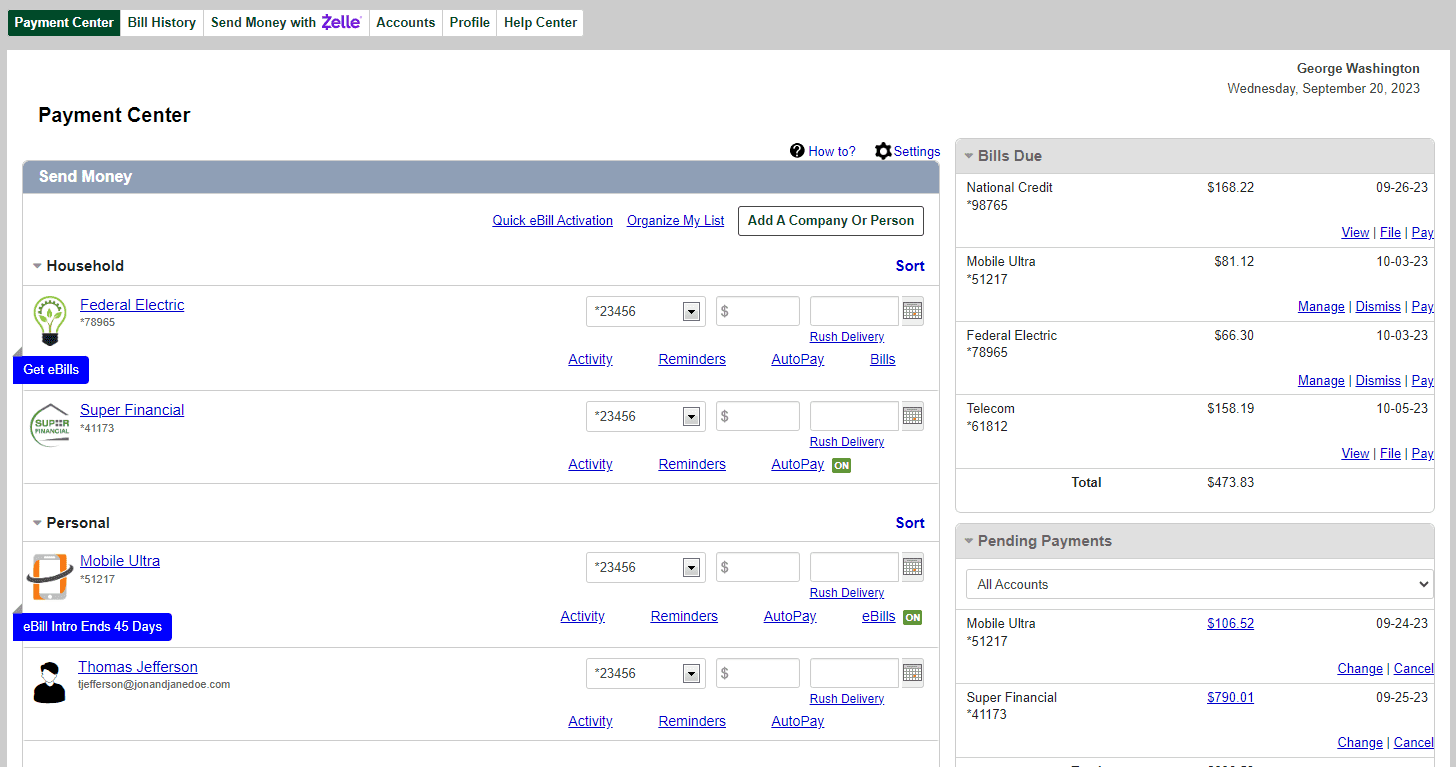
Adding Payees
Before paying bills, you’ll need to add the people or companies you want to pay:
- Log into your Fidelity account
- Go to the Bill Pay section
- Select “Add a Payee”
- Enter the required information (usually name, address, and account number)
- Save the payee
You can add virtually any payee – from major companies to individuals like your landlord or babysitter.
Making One-Time Payments
Need to pay that electric bill that’s due next week? Here’s how:
- Log in and go to Bill Pay
- Select the payee from your list
- Enter the payment amount
- Choose the payment date
- Select which Fidelity account to pay from
- Review and confirm
The system will tell you when the payment will be delivered. Electronic payments typically process faster than paper checks (which Fidelity will mail for payees who can’t receive electronic payments).
Setting Up Recurring Payments
For those monthly bills that never change (or that you always forget):
- Follow the same steps as a one-time payment
- Look for the “Make this recurring” option
- Select the frequency (weekly, monthly, etc.)
- Choose an end date or number of payments (optional)
- Review and confirm
I’ve got my rent, internet, and streaming services all on autopilot this way – it’s been a game-changer for never missing payments!
Payment Scheduling and Processing Times
This is important to understand! Fidelity processes payments differently depending on the payee:
- Electronic Payments: Typically delivered in 1-2 business days
- Check Payments: May take 5-7 business days for delivery
Always schedule your payments with these timeframes in mind. I usually set mine at least 5 business days before the due date, just to be safe.
Advanced Features of Fidelity Bill Pay
Payment Reminders
Never miss a payment by setting up reminders:
- Go to the Bill Pay section
- Find the “Reminders” or “Alerts” option
- Set up email or mobile notifications
- Choose how many days in advance you want to be reminded
eBills
For certain providers, Fidelity can receive your bills electronically:
- Look for the “eBill” option next to eligible payees
- Follow the prompts to link your account
- Start receiving bills directly in your Fidelity account
This feature lets you see your bill amounts and due dates without leaving Fidelity.
Payment History
Need to check if you paid something or track spending?
- Go to Bill Pay
- Select “Payment History” or “Activity”
- Filter by date range, payee, or amount
- Export data if needed for budgeting
I review mine monthly to keep tabs on my spending habits.
Managing Bill Pay on Mobile
One of my favorite things about Fidelity Bill Pay is the robust mobile experience:
- Download the Fidelity Mobile app for your device
- Log in with your credentials
- Navigate to the Cash Management section
- Select Bill Pay
The mobile interface offers nearly all the same functionality as the desktop version. You can add payees, schedule payments, check payment history, and receive alerts on the go.
Troubleshooting Common Bill Pay Issues
Payment Didn’t Arrive?
If a payment is late or missing:
- Check the payment status in your Bill Pay history
- Verify the delivery date you selected
- Contact Fidelity support if the payment should have arrived
Remember that paper checks take longer and depend on postal service delivery times.
Need to Cancel a Payment?
To stop a payment that hasn’t processed yet:
- Go to Bill Pay
- Find the payment in “Scheduled Payments”
- Select the option to cancel
- Confirm cancellation
Note that you can only cancel payments that haven’t been processed yet. Once Fidelity initiates the payment, it may be too late to stop it.
Security Measures in Fidelity Bill Pay
Fidelity takes security seriously, implementing several layers of protection:
- Encryption: All transactions are encrypted using industry standards
- Fraud monitoring: Automated systems look for suspicious activity
- Multi-factor authentication: Additional verification steps for sensitive actions
- Secure login: Username, password, and often a security code
I personally feel confident using Fidelity Bill Pay because of these robust security measures.
Comparing Fidelity Bill Pay with Other Services
How does Fidelity Bill Pay stack up against the competition? Here’s my take:
| Feature | Fidelity Bill Pay | Typical Bank Bill Pay | Standalone Bill Pay Services |
|---|---|---|---|
| Cost | Free | Often free | Usually subscription-based |
| Integration | Connected to investments | Bank accounts only | No investment integration |
| Payment Types | Electronic & paper checks | Electronic & paper checks | Usually electronic only |
| Support | 24/7 | Varies by bank | Varies |
| Mobile Access | Full-featured | Varies by bank | Usually good |
The biggest advantage of Fidelity is the integration with your investment accounts and the robust platform backing it.
Tips for Getting the Most Out of Fidelity Bill Pay
After using this service for years, here are my pro tips:
- Schedule advance payments: Set up important bills 5-7 days before due dates
- Use eBills when possible: They give you better visibility into what you owe
- Set up alerts: Email reminders ensure you’re aware of upcoming payments
- Review history monthly: Makes budgeting easier and catches any issues
- Group similar bills: Schedule all utilities or subscriptions on the same day each month
Final Thoughts: Why Fidelity Bill Pay Works for Me
After using Fidelity Bill Pay for several years, I can honestly say it’s simplified my financial life. Having my investments and bill payments in one secure place means less time jumping between websites and apps, and more time actually living my life.
The service is particularly valuable if you already use Fidelity for investments or banking. The integration is seamless, and the interface is intuitive enough that even my tech-challenged dad figured it out quickly!
The 24/7 support has been a lifesaver on the few occasions I’ve had questions, and the mobile app means I can manage everything while waiting in line for coffee.
If you’re looking to streamline your financial management, Fidelity Bill Pay is definitely worth considering. It’s free, secure, and makes adulting just a little bit easier – and who doesn’t want that?
Want to get started? You can either open a new Fidelity Cash Management Account or add Bill Pay to your existing Fidelity account by logging in and following the steps we covered.
Have you tried Fidelity Bill Pay? What’s been your experience? Drop a comment below – I’d love to hear how it’s working for other folks too!
Ready to Get Started?
Enrollment is easy! To get started, simply complete our convenient Personal Online Banking enrollment form, and put your bank at your fingertips. If you’re already enrolled in Fidelity Bank Personal Online Banking, simply click on the Payments tab to get started.
Start sending money with Zelle®. Zelle® is a fast, easy, and safe way to send money to friends, family, and people you trust with just a phone number or email address.
Stay in the know, on the go. Set account and transaction alerts to help you manage your money and monitor your accounts at all times.
Managing your personal finances should be simple! Whether you’re looking for a basic checking account or an account that offers the ability to earn money, we have the right solution for you.
Save Time With Bill Payment
Pay all your bills from one place – safely and securely. With Fidelity Bank Bill Payment, you can avoid the hassles of visiting multiple websites, writing checks, and buying stamps.

Schedule one-time and recurring payments
Set up payment reminders
Receive electronic bills instead of paper bills
Fidelity Bill Pay
FAQ
How does Fidelity Bill Pay work?
Simply select a payee, enter the amount of the payment and the date it should be sent, and BillPay does the rest. You can pay up to 20 bills at once. Use BillPay to schedule recurring payments, such as mortgages. You’ll never have to worry about forgetting a payment.
What are the disadvantages of Bill Pay?
Cons of Bill Pay
For those unfamiliar with digital banking, there can be a learning curve to setting up and managing Bill Pay. However, once you get familiar with it, it’s easy to use. If you don’t monitor your checking account balance, automatic payments might lead to overdrafts or insufficient funds fees.
How does a Bill Pay account work?
Online bill pay enables you to schedule and pay your bills right from your computer, tablet or mobile phone. An online bill pay service works by deducting a payment from your account balance and transferring it to a service provider. A bill pay service may be included as part of a checking account’s features.
What is the Bill Pay limit for Fidelity?
Individual payments may be made with any amount between $0.01 and $100,000.00.
