You’ll receive a copy of your monthly billing statement via email when it becomes available. The statement will also be available in the Google Fi app and on the website.
Hey there, folks! If you’re like me, bills are the bane of your existence. They sneak up on ya when you least expect it, and figuring out how to pay ‘em can be a real pain in the neck. Today, we’re diving into somethin’ specific—how to pay my Google Fi bill. If you’re rockin’ Google Fi as your wireless service, you might’ve noticed it ain’t exactly like payin’ your old-school phone bill. Don’t worry, though—I’ve got your back. We’re gonna break this down into super simple steps, toss in some handy tips, and make sure you ain’t stressing over this no more.
Let’s get straight to the good stuff. Google Fi is a different kinda phone plan, run by the big G itself—Google. It’s got some cool perks, but when it comes to payin’ that monthly bill, there’s a specific way to do it. I’m gonna walk ya through the process, explain what works and what don’t, and make sure you’re set up to handle this like a pro.
What Even Is Google Fi Billing?
Before we jump into the “how,” let’s chat real quick about what Google Fi billing looks like Basically, Google Fi sends ya a monthly bill based on your usage or plan Now, here’s the kicker—10 days after that bill is ready, they’re gonna charge the main credit or debit card tied to your Google Account. No messin’ around, no reminders—they just take it. So, you gotta make sure that card is good to go.
If you’re thinkin’, “Wait, I don’t got no card set up!”—don’t panic. We’ll cover how to add one in a sec But first, let’s talk about what kinda payment methods Google Fi actually takes Spoiler it ain’t a long list.
Payment Methods That Work (And Ones That Don’t)
Alright, let’s lay this out clear as day. Google Fi is pretty picky about how you can pay your bill. They stick to cards, and that’s about it. Here’s the rundown of what works and what’s a no-go.
Accepted Payment Methods
These are the cards you can use to settle up with Google Fi
- Visa – Yup, your trusty Visa card works just fine.
- Mastercard – Another solid option if that’s what you carry.
- American Express – Fancy folks with AmEx, you’re covered too.
- Discover – Not as common, but hey, it’s on the list.
That’s it. If you’ve got one of these in your wallet, you’re golden. Make sure it’s the primary card on your Google Account, ‘cause that’s the one they’ll hit.
Payment Methods That Ain’t Gonna Cut It
Now, here’s where folks trip up. Google Fi don’t mess with a bunch of other payment options. If you’re thinkin’ of using any of these, forget about it:
- Checks – Nah, they ain’t takin’ paper checks.
- Wire Transfers – Too complicated, not allowed.
- Bank Transfers – Even if your bank is linked to Google, nope.
- Western Union – Old-school money sendin’ don’t work here.
- MoneyGram – Same deal, they ain’t acceptin’ it.
- Escrow Payments – Whatever that is, Google Fi says no.
- Prepaid Cards – Thought you could use a gift card or somethin’? Think again.
- Google Pay Balance – Surprisin’, but your Google Pay funds can’t be used for Fi.
I know, I know—it’s kinda lame they don’t let ya pay straight from a bank account or use other methods. I’ve been there, wantin’ to just transfer some cash and call it a day. But Google Fi keeps it tight with cards only, so we gotta roll with that.
Here’s a quick table to sum it up, ‘cause I like keepin’ things visual:
| Accepted Methods | Not Accepted Methods |
|---|---|
| Visa | Checks |
| Mastercard | Wire Transfers |
| American Express | Bank Transfers |
| Discover | Western Union |
| MoneyGram | |
| Escrow Payments | |
| Prepaid Cards | |
| Google Pay Balance |
Got it? Cool. Let’s move on to actually payin’ that bill.
Step-by-Step: How to Pay My Google Fi Bill
Now that we know what works, let’s walk through gettin’ this bill paid. I’m assumin’ you’ve already got a Google Fi account set up. If not, holler at me in the comments, and I’ll help ya out. For now, here’s the game plan.
1. Check Your Bill Status
First things first, ya gotta know where you stand. Head over to your Google Fi account. You can do this on the app or website—whatever floats your boat. Look for the billing section. It’ll show ya if your bill is ready, how much it is, and when that 10-day countdown started. If it’s been less than 10 days, you’ve got some time before they charge ya.
2. Make Sure Your Card Is Set Up
Remember, Google Fi auto-charges your primary card. So, double-check that the right one is listed in your Google Account. Here’s how:
- Go to your Google Account settings (google.com or the app).
- Find the “Payments & Subscriptions” section.
- Look at your payment methods. Is the card you want there? Is it set as primary?
- If not, hit “Add Payment Method” and toss in your Visa, Mastercard, or whatever ya got from the accepted list.
I’ve messed this up before, y’all. Had an old card still listed, and guess what? It got declined. Don’t be like me—check it now.
3. Add a New Card If Needed
Ain’t got a card on file, or the one there don’t work no more? No biggie. When you’re in that “Payments & Subscriptions” spot, just click to add a new card. Fill in the deets—card number, expiration, all that jazz. Make sure it’s one of the accepted types (Visa, Mastercard, American Express, or Discover). Once it’s saved, set it as your primary so Google Fi knows to use it.
4. Wait for the Auto-Charge (Or Pay Early If You’re Fancy)
Here’s the thing—Google Fi don’t really let ya “pay” manually unless somethin’s gone wrong. Normally, they just charge your card 10 days after the bill’s ready. So, if everything’s set up right, you can sit back and let it happen. But if you’re like me and wanna get it outta the way early, check your Google Fi account for any option to pay now. It ain’t always there, but sometimes you can sneak it in.
5. Confirm It Went Through
After the 10 days (or if you paid early), peek at your account again. Make sure the payment shows as processed. I also check my card statement just to be sure—call me paranoid, but I’ve had weird tech glitches before. If it’s all good, you’re done! If not, we’ll talk troubleshootin’ in a bit.
Tips to Make Payin’ Your Google Fi Bill Easier
Alright, now that we’ve got the basics down, let’s chat about some tricks I’ve picked up to keep this process smooth as butter. Bills stress me out, so anything to make ‘em less of a headache is a win in my book.
- Set a Reminder for the Bill Date – Google Fi don’t send a ton of warnings before they charge ya. Pop a reminder on your phone for a couple days before that 10-day mark. That way, you can double-check your card or add funds if needed.
- Keep an Extra Card on File – You can have backup payment methods in your Google Account. Add a second card as a just-in-case. If the primary fails, they might try the next one. Saved my bacon once, I swear.
- Update Cards Before They Expire – If your card’s about to expire, Google Fi won’t know ‘til it fails. Swap it out early in your Google Account settings to avoid a missed payment.
- Check Your Usage Mid-Month – Google Fi bills can change based on how much data or calls you use. Peek at your usage in the app halfway through the month. If it’s lookin’ high, maybe cut back a bit to keep that bill low.
- Don’t Ignore Emails – Sometimes Google Fi sends a heads-up if there’s an issue with your payment. Don’t let them emails sit in your spam folder—check ‘em quick.
I’ve learned these the hard way, y’all. Nothin’ worse than a surprise bill or a declined card when you thought everything was fine. Let’s keep that drama outta our lives.
What If Somethin’ Goes Wrong?
Look, tech ain’t perfect, and neither are we. Sometimes, payin’ your Google Fi bill don’t go as planned. Maybe your card gets declined, or you miss the payment window. Don’t sweat it—here’s how to fix common hiccups.
Card Declined? Here’s the Deal
If your card don’t go through, Google Fi will probably shoot ya a message or email sayin’ there’s a problem. First, check why it failed—low funds? Expired card? Wrong number? Fix that in your Google Account by updatin’ the card or addin’ a new one. Once it’s sorted, they’ll usually retry the charge. If not, look for a “Retry Payment” option in your Fi account, or reach out to their support team.
Missed the Payment?
If ya somehow miss the auto-charge window and don’t pay on time, Google Fi might pause your service. Yikes, I know. But they’ll likely give ya a chance to catch up. Log into your account, see the overdue amount, and update your payment method if needed. Pay up quick to get back online. I’ve been late before, and trust me, it’s a hassle, but they don’t cut ya off forever.
Can’t Figure Out Where to Pay?
If you’re lost in the Google Fi app or website, don’t panic. Head to fi.google.com or open the app, and look for “Billing” or “Account.” It’s usually right there. Still stuck? Hit up their help community or contact support. They’re pretty chill about walkin’ ya through it.
Payment Method Not Workin’?
Remember, only certain cards work. If you’re tryin’ to use a prepaid card or somethin’ else from the “not accepted” list, it ain’t gonna fly. Swap it out for a Visa or Mastercard or one of the others. I tried usin’ a weird card once, and yeah, got nowhere fast.
Why Google Fi Keeps It So Strict with Payments
You might be wonderin’, “Why the heck don’t Google Fi let me pay with my bank account or somethin’ else?” I’ve wondered that too. From what I’ve figured, it’s all about keepin’ things streamlined. Auto-chargin’ cards is easier for them to manage than dealin’ with checks or transfers that can bounce or take forever. Plus, since it’s tied to your Google Account, they wanna keep payments in one spot. It’s annoyin’ if you don’t got a card handy, but it does make the process predictable once ya get it set up.
Extra Stuff to Know About Google Fi Billing
We’ve covered the main way to pay my Google Fi bill, but there’s a few more tidbits worth mentionin’. These ain’t critical, but they’ve helped me get a better grip on how this whole thing works.
- Changin’ a Card – If ya need to switch cards, just go back to that “Payments & Subscriptions” section in your Google Account. Remove the old one, add a new one, set it as primary. Easy peasy.
- Removin’ a Card – Don’t want a card on file no more? Same spot—hit remove. Just make sure ya got another one set as primary, or you’ll be in a pickle come bill time.
- Group Plans and Payments – If you’re on a group plan with Google Fi, the primary account holder usually handles the bill. Make sure they’ve got the right card set up, or the whole crew might lose service.
- Switchin’ Plans – Changin’ your Fi plan might mess with your bill amount. Keep an eye on that when ya switch, so ya ain’t surprised by a bigger charge.
I’ve juggled group plans before, and let me tell ya, communicatin’ with your crew about who’s payin’ is key. Don’t let that slip through the cracks.
Wrappin’ It Up: You’ve Got This!
Payin’ my Google Fi bill ain’t the most excitin’ thing in the world, but it don’t gotta be a nightmare neither. Stick with a good card—Visa, Mastercard, American Express, or Discover—and make sure it’s set as primary in your Google Account. Check your bill status, set reminders, and keep an eye out for any hiccups. If somethin’ goes south, update your card or hit up support. We’ve walked through the steps, the tips, and the fixes, so you’re armed with everything ya need to handle this like a champ.
I’ve been usin’ Google Fi for a while now, and once ya get the hang of their payment system, it’s smooth sailin’. Sure, I wish they’d let us pay with other methods sometimes, but hey, we work with what we got. If you’ve got questions or run into a weird issue I ain’t covered, drop a comment below. I’m happy to help ya figure it out.
Remember, bills might suck, but you’re smarter than ‘em. Keep that card ready, stay on top of your account, and let’s keep our phones runnin’ without no drama. Catch ya in the next post!
Unlimited Essentials, Unlimited Standard & Unlimited Premium plans
Based on the number of people in your plan, you prepay a monthly fee for unlimited calls, texts, and data charged at the start of your bill cycle.
Charged at the end of your bill cycle, you postpay extra charges, like for:
- Calls abroad
- Return to full speed data
- International calls from the US
- (If you recently switched) Data use charges from the Flexible plan
- Prorated costs for new members
When to expect your monthly statement
In most cases, your billing cycle is set on the day you activate your service plus two days. So if your service started on June 4th, your first billing cycle will end on July 6th, your next on August 6th, and so on.
However, if that date (activation plus two days) falls on the 1st, 28th, 29th, 30th, or 31st of any month, your billing cycle will be set to the 2nd of the month. For example, if you start your service on June 26th, 27th, 28th, 29th, or 30th, your first billing cycle will end on July 2nd, your next on August 2nd, and so on.
You’ll receive your statement via email two days after the end of each billing cycle. You can see the statement in the Google Fi app or on the website as soon as the billing cycle ends. It’ll be marked “Preview – still finalizing” until you get the email.
How To Pay Google Fi Bill | How To Pay Google Fi Bill Early
FAQ
How do I pay my Google Fi bill?
Your Google Fi bill is automatically charged to the primary credit or debit card on your account 10 days after the monthly statement becomes available. It’ll be marked “Preview – still finalizing” until you receive the email.
Is a Google Fi Bill mailed to me?
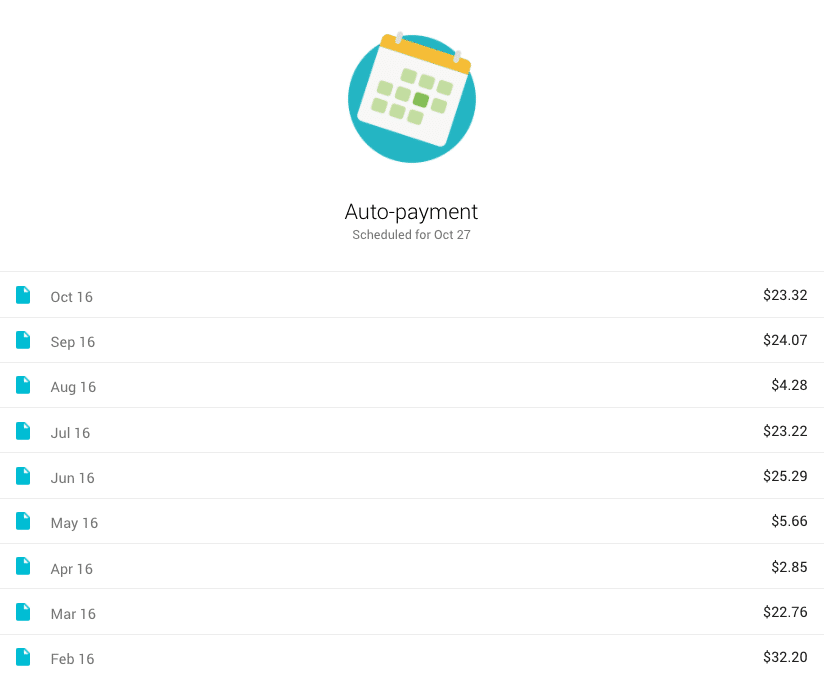
Google Fi bills will not be delivered in the mail. Instead, you can open the Google Fi website or app to view your most recent statement at the top. Past statements are also available below. Expand a statement to see more details. (View a tutorial on how to view your billing statements on your Android or iPhone.)
How do I download my bill after my Google Fi account is closed?
To download your bill after closing your Google Fi account, you must go through Google Pay. Tap ‘Subscriptions and services’ > ‘Canceled Manage’ > ‘Google Fi’ > ‘View statements’ > ‘Download’. This will help you find and download your bill.
How can I obtain a copy of my Google Fi Bill?
You’ll receive an email with a copy of your Google Fi Bill when it becomes available at the end of your billing cycle. The statement is also available in the Google Fi app and on the website.
Is automatic payment mandatory for Google Fi?
Google Fi requires automatic payments. You prepay (charged at the beginning of your billing cycle) a monthly fee for unlimited calls and texts, based on the number of people in your plan. Learn how to update your credit card information.
Will Google Fi accept my payment?
Google Fi won’t accept your service or allow your number to be ported out until the bill is paid. At the end of the day, no matter how awful other providers like AT&T or Verizon may be, they’ll accept your payment.
How to make a payment to Google Fi?
- Checks.
- Wire transfers.
- Bank transfers.
- Western Union.
- MoneyGram.
- Any escrow type of payment.
- Prepaid cards.
- Google Pay balance.
How do I pay my Google bill?
How to pay your Google Fi bill early?
payments.google.com and sign in with your Google account. Then, select “Subscriptions & services”, find Google Fi, and choose “Manage”. You should then see an option to “Pay early” or “Make a payment”. How do I access my Google Fi account?
To access your Google Fi account, you can also use the Google Fi website. Simply open your web browser and go to the Google Fi website. On the homepage, you will see a “Sign in” button at the top right corner. Click on it and enter your Google Account login information.
