Hey there! If you’re tired of the whole check-writing, stamp-licking, “did I mail that on time?” drama, then you’re in for a treat. Setting up bill pay with Bank of America is a game-changer, and I’m here to walk ya through it step by step Whether you’re a tech newbie or just wanna streamline your finances, this guide’s got your back We’re gonna dive into how to get started with Bank of America’s online bill pay, from signing up to scheduling payments, and even some insider tips to make it smooth as butter. Let’s ditch the hassle and get those bills paid without breaking a sweat!
Why Bank of America Bill Pay is a Total Lifesaver
Before we jump into the nitty-gritty, let’s chat about why this matters. Bank of America’s bill pay feature lets you pay your bills straight from your checking or savings account, either through their website or mobile app. No more mailing checks or worrying about late fees—Bank of America handles it for you either by sending a payment electronically or mailing a check on your behalf. It’s like having a personal assistant minus the fancy salary.
Here’s the quick lowdown on why it rocks:
- No more manual mess: Forget envelopes and stamps. Pay bills with a few clicks.
- On-time payments: Schedule stuff in advance so you’re never late.
- Flexibility: Pay companies or even individuals, one-time or recurring.
- Cost? Almost nada: It’s free if you schedule at least one payment a month. If not, there’s a small $4.95 fee, but c’mon, just set one up and you’re golden.
Now that you’re hyped about it, let’s get to the good stuff—setting this up so you can kick back and relax
Step 1: Make Sure You’re Enrolled in Online Banking
First things first, you gotta be enrolled in Bank of America’s online banking to use bill pay. If you ain’t signed up yet, no worries—it’s a breeze. Here’s how we start:
- Head over to the Bank of America website (y’know, the main one).
- If you don’t have an online account, click to enroll. You’ll need your account details handy, like your account number or card info.
- Set up your username and password, and agree to their terms. Easy peasy.
- Already got an account? Just log in and check if bill pay is active. Look for a section like “Billing and Payments” or a “Schedule Payments” tab.
If you log in and don’t see bill pay as an option, there might be a button saying something like “Learn more and enroll.” Click that bad boy and follow the prompts. Still no dice? Give Bank of America a holler to request access. Once you’re in, that button should switch to “Schedule Payment,” and you’re ready to roll.
Step 2: Setting Up Bill Pay on the Website
Alright, now that you’re logged into online banking, let’s set up bill pay through the website. I’m gonna break this down so it’s crystal clear, ‘cause I know messing with money stuff can be a pain in the neck.
- Find the Bill Pay Tab: Once logged in, look for a tab or section labeled “Bill Pay” or “Pay Bills.” Click on it.
- Accept the Terms: If it’s your first time, you’ll likely need to agree to some terms and conditions for using the service. Skim through (or read if you’re thorough), then accept.
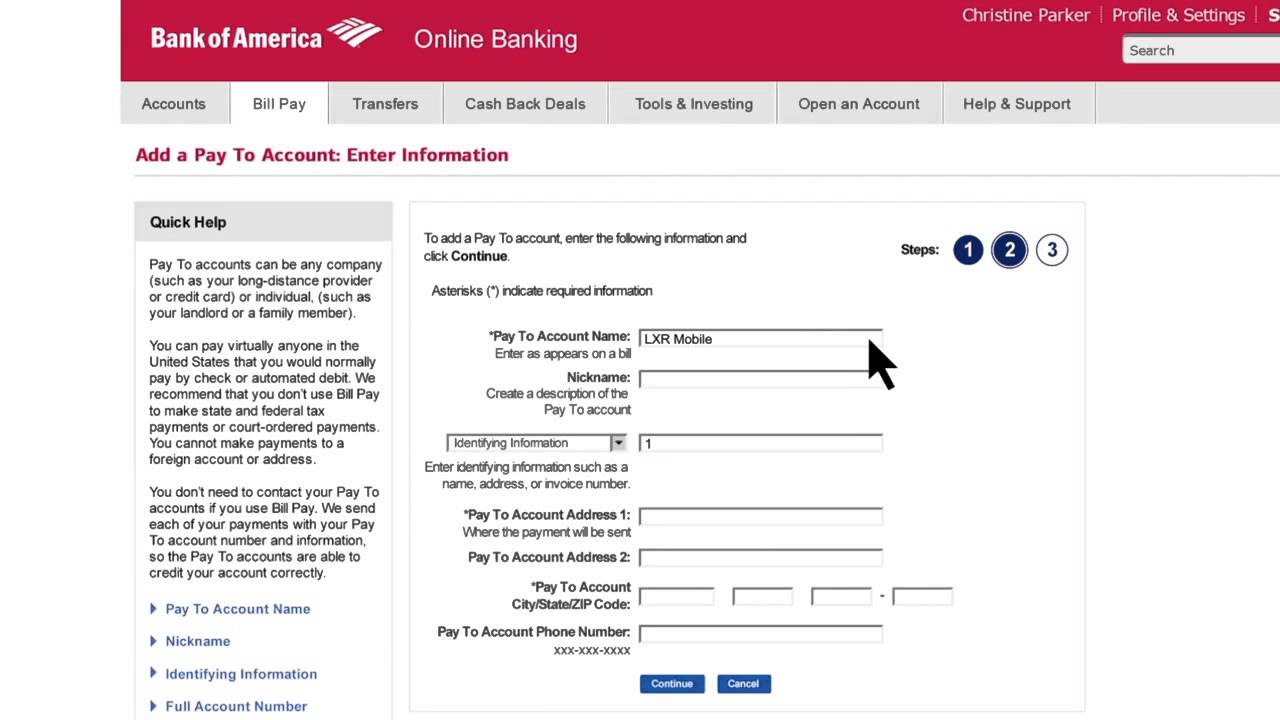
- Start Adding Payees: A payee is just whoever you’re paying—think utility company, landlord, or even a buddy you owe cash to. Hit something like “Add Payee” or “Add a Company or Person.”
- Fill in the Deets: Enter the name of the company or person. The system might suggest matches as you type—grab one if it pops up to save time. Then, pop in the account number for that bill (check your statement for this), and confirm the details.
- Schedule a Payment: Pick the amount, choose a date for the payment to go out, and decide if it’s a one-time thing or recurring. Double-check everything, then hit submit.
Boom, you’ve set up your first payment! Bank of America will either send it electronically if the payee accepts that, or mail a check for ya. Just a heads up—payments can take up to 5-10 business days to reach the recipient, so schedule early to avoid any late fees.
Step 3: Setting Up Bill Pay on the Mobile App
If you’re more of a phone person (like me, honestly), you can set up bill pay right from the Bank of America mobile app. It’s just as easy, if not easier, ‘cause you can do it while chilling on the couch. Here’s the play-by-play:
- Download the App: If you don’t have it yet, grab the Bank of America Mobile Banking app from your app store. Log in with your online banking credentials.
- Tap into Bill Pay: From the home screen, look for an icon or tab that says “Bill Pay” or “Pay & Transfer.” Tap it.
- Add a Payee: Hit “Add Pay To Accounts” or something similar. Type in the name of who you’re paying—again, select from suggestions if they show up. Add the account number, the amount, and pick a payment date.
- Confirm and Submit: Review all the info, make sure it’s right, then tap submit. The payee gets added to your list, and you can edit or schedule more payments anytime.
I love using the app ‘cause it’s quick, and you get instant confirmation that your payment’s scheduled. Plus, you can snap a pic of a bill or statement if you need to double-check numbers on the go.
Step 4: Adding More Payees to Keep Things Rollin’
To really make bill pay work for ya, you’ll wanna add all the folks and companies you pay regularly. Whether you’re on the website or app, the process is pretty much the same. Here’s some tips to make it a snap:
- Have Account Numbers Ready: When adding a new payee, you’ll need the account number from your bill or statement. This links the payment to your specific account with that company.
- Use Auto-Complete: Start typing the payee’s name, and Bank of America often suggests matches. Pick one if it’s right—it saves you from typing out long company names.
- Set Up Recurring Payments: Got bills like rent or a subscription that’s the same every month? Set ‘em as recurring so you don’t gotta remember to schedule ‘em. It’s a no-brainer for stuff you pay all the time.
You can pay almost anyone—big companies, small businesses, even individuals. Just add ‘em once, and they’re saved for future payments.
Step 5: Setting Up Autopay for Ultimate Ease
Now, if you really wanna set it and forget it, let’s talk autopay. Bank of America lets you automate payments so you’re not manually scheduling every dang month. Here’s how we do it:
- Log In and Find Autopay: On the website, go to the Bill Pay tab and look for an option like “Set Up AutoPay.” On the app, it’s usually under the payment settings for a specific payee.
- Choose Your Style: You can set autopay based on the eBill amount (if the biller sends electronic statements), so it adjusts to what’s due. Or, pick a fixed amount on a regular schedule, like weekly or monthly.
- Set It Up for Credit Cards: Got a Bank of America credit card? You can autopay that too. Log in, go to bill pay or card settings, and schedule automatic payments. Pick minimum payment, full balance, or a custom amount.
Autopay’s a lifesaver if you’re forgetful like me. Just make sure there’s enough dough in your account when the payment’s due, or it might not go through.
What About eBills? Let’s Break That Down
You might’ve heard of eBills, and I’m gonna explain ‘em real quick ‘cause they’re pretty cool. eBills are just electronic versions of your paper bills. Instead of getting a statement in the mail, it shows up in your Bank of America bill pay dashboard. Here’s the scoop:
- How to Set ‘Em Up: In bill pay, look for an option to add eBills when you’re setting up a payee. If the company offers it, you’ll get digital statements.
- Paying an eBill: When one arrives, you’ll see it under something like “Incoming eBills.” Choose to pay the full amount, minimum (for stuff like credit cards), or whatever you want. Pick a date, and send it off.
- Canceling If Needed: If you don’t want eBills from a certain biller anymore, go to the bill pay tab, find the payee, and look for “Edit eBill Options.” There’s usually a cancel link there.
eBills also come with reminders, so you get a nudge when something’s due. It’s like having a lil’ helper keeping you on track.
Timing and Fees: What You Gotta Know
Let’s chat about a couple practical things so there’s no surprises. Timing and costs matter when you’re dealing with bills, right? Here’s the deal with Bank of America bill pay:
| Aspect | Details |
|---|---|
| Payment Timing | Takes 5-10 business days to reach the payee. Schedule at least 5 days early. |
| When Money’s Taken | Usually deducted on the day you schedule, unless it’s a check or non-business day. For SafeBalance accounts, it’s withdrawn before delivery. |
| Fees | Free if you schedule one payment a month. Otherwise, $4.95 monthly fee. |
If a payee don’t accept electronic payments, Bank of America mails a check, and the money might not leave your account ‘til it’s cashed. Just keep an eye on your balance to avoid any oopsies.
Tips for a Smooth Bill Pay Setup
I’ve been using online bill pay for a while, and I’ve picked up a few tricks to keep things from going haywire. Here’s my advice for ya:
- Double-Check Account Numbers: When adding a payee, make sure the account number matches your bill. A typo could send money to the wrong place, and that’s a headache.
- Schedule Early: Don’t wait ‘til the last minute. Give payments a buffer of at least 5 business days to make sure they arrive on time.
- Use Recurring for Regular Bills: If it’s the same amount every month, automate it. One less thing to stress over.
- Keep Funds Ready: Especially with autopay or SafeBalance accounts, make sure there’s enough in your account when payments are due. If not, the payment might bounce.
- Check Confirmations: After scheduling a payment, look for a confirmation message or email. It’s your proof everything’s set.
Follow these, and your gonna be golden. It’s all about making life easier, not adding more stress.
Common Questions Folks Ask (And My Answers)
I know setting up something new can bring up a ton of questions, so let’s tackle some of the big ones I’ve heard (or wondered myself):
- Is there a limit to how many bills I can pay? Nope, pay as many as you want. There’s no cap, so go nuts with organizing all your payments.
- What if a payment don’t go through? If there ain’t enough money in your account (especially with SafeBalance), the payment won’t send. Check your balance before scheduling, and keep tabs on it.
- Can I pay my Bank of America credit card with this? Heck yeah, you can. Set it up like any other bill, and even schedule autopay for it. Payments get credited the same day if scheduled before 11:59 PM Eastern.
- What if I mess up a payee or payment? No biggie. Go back to the bill pay section, edit the payee details, or cancel a scheduled payment if it hasn’t gone out yet.
Got more questions? Drop ‘em in the comments, and I’ll do my best to help ya out.
Why I’m Obsessed with Bank of America Bill Pay
Lemme tell ya, before I started using this, I was a hot mess with bills. I’d forget due dates, lose checks, and stress out constantly. Switching to Bank of America’s bill pay was like a weight off my shoulders. I got everything set up in under an hour, and now I barely think about bills—they just get paid. The app makes it so dang easy to check on stuff, and autopay means I don’t gotta lift a finger for recurring stuff. If I can do it, trust me, you can too.
It ain’t just about convenience, though. It’s about peace of mind. Knowing my payments are scheduled, seeing confirmations, and getting reminders for eBills—it’s like I’ve got my financial ducks in a row for once. And the fact it don’t cost a dime if I use it monthly? That’s just icing on the cake.
Wrapping It Up: Your Turn to Simplify Bill Paying
So, there ya have it—a full-on guide to setting up bill pay with Bank of America. We’ve covered enrolling in online banking, setting it up on the website and app, adding payees, automating payments, and even handling eBills. Plus, I threw in some tips and answers to common worries so you’re not left scratching your head.
If you’ve been putting this off ‘cause it seems complicated, don’t sweat it. Take 20 minutes, follow these steps, and you’ll wonder why you didn’t do it sooner. Bills don’t gotta be a pain in the rear—let Bank of America handle the heavy lifting. Got a story about how bill pay saved your bacon, or still stuck on something? Hit me up in the comments. Let’s keep this convo going and get your finances running like a well-oiled machine!
Step 5
Enter the payment amount and deliver by date. Repeat these steps for each Payee you want to pay. Click Make Payments.
Note: Select AutoPay to set up a recurring payment for the same amount on a schedule you choose.
Step 3
Select Pay Bills.
