Are you tired of writing checks every month for your bills? Or maybe you’ve been using online banking but want a more streamlined solution for paying all your bills in one place. If your bank offers Metavante Bill Pay services, you’re in luck! This powerful tool can simplify your financial life and save you tons of time each month. Let’s dive into everything you need to know about Metavante Bill Pay.
What is Metavante Bill Pay?
Metavante Bill Pay is an online bill payment service that allows you to pay your bills electronically through your bank’s internet banking platform. It’s developed by Metavante, a leading provider of banking and payment technologies. With this service, you can schedule one-time or recurring payments to practically any payee in the United States.
The beauty of Metavante Bill Pay is that it works through your existing online banking account, so there’s no need to create separate accounts with multiple billers or remember different passwords. It’s all in one convenient place!
Getting Started with Metavante Bill Pay
Accessing the Service
To start using Metavante Bill Pay you need to
- Log in to your online banking account
- Look for the “Bill Pay” or “Bill Payment” link
- Register for the service if you haven’t already
For first-time users, registration is required The process is pretty straightforward
- You’ll need to accept an online disclosure form that outlines the terms and conditions
- Complete an application form with your personal information
- Wait for approval from your financial institution (usually 1-3 days)
- Receive an activation email indicating your service is ready to use
Registration Process in Detail
When you click on the Bill Payment link for the first time you’ll be prompted to register. Here’s what happens
- You’ll see a disclosure form outlining the terms of service
- After accepting, you’ll complete an application form with:
- Personal information (name, address, phone numbers)
- Your mother’s maiden name (for security verification)
- Your account number (selecting which account to use for payments)
- Social Security Number
- Email address
Once submitted, your application is reviewed by your bank. If approved, you’ll receive an email notification. Shortly after (typically within 1-3 days), you’ll get an activation email letting you know the service is ready to use.
Key Features of Metavante Bill Pay
Adding Payees
Before you can schedule payments, you need to add payees to your account. This is simple:
- Click the “Payees” button
- Select “Add Payee”
- Search for the payee in the database or add them manually
- Enter the account number and other required information
For many common merchants and utilities, Metavante already has their information in their database, making the process even easier. If your payee isn’t found, you can add them manually by entering their name, address, phone number, and your account number with them.
Scheduling Payments
Metavante Bill Pay offers two types of payments:
Single Payments: One-time payments to a payee
- Select the payee
- Enter the payment amount
- Choose the payment processing date
- Click “Schedule Payment”
Recurring Payments: Regular payments at set intervals
- Select the payee
- Enter the payment amount
- Click “Recurring Date”
- Select frequency (weekly, bi-weekly, monthly, etc.)
- Set the final payment date
- Click “OK”
The system includes a handy calendar feature to help you select dates, showing holidays and weekends in different colors.
Managing Payments
After scheduling payments, you can:
- View pending payments: See all upcoming scheduled payments
- Edit payments: Change the amount or date of pending payments
- Delete payments: Cancel payments that haven’t been processed yet
- View payment history: See payments that have already been processed
All of these functions are available through the “View Pending and History Payments” screen.
Practical Tips for Using Metavante Bill Pay
Plan Ahead for Processing Time
Remember that payments aren’t instant! The processing times are:
- Electronic payments: 3 business days
- Check payments: 5 business days
When scheduling payments, make sure to allow enough time for processing. The date you select is when the payment begins processing, not when it arrives at the payee.
Use the Payee Filter
If you have lots of payments, you can use the Payee Filter to view only transactions for specific payees or date ranges. This makes it easier to find exactly what you’re looking for.
Turn Novice Mode On/Off
If you’re new to Metavante Bill Pay, the “Novice Mode” provides helpful on-screen tips. Once you’re comfortable with the system, you can turn this off for a cleaner interface.
Limitations and Things to Know
Payment Limits
Metavante has a payment cap of $9,999 per transaction, regardless of how the payment is disbursed.
Supported Payees
You can pay almost anyone in the United States who can accept a check, with some exceptions:
- Tax payments (federal, state, local)
- Court-directed payments (alimony, child support)
- Other government-related payments
Non-Processing Dates
Metavante doesn’t process payments on:
- Sundays
- Federal Reserve Board recognized holidays
Insufficient Funds
If you don’t have enough money in your account when a payment is processed:
- Your account may be blocked from making more payments
- Future dated recurring payments won’t be sent
- You’ll need to resolve the insufficient funds issue before continuing to use the service
Common Questions About Metavante Bill Pay
How are payments actually made?
Payments are sent in one of two ways:
- Electronic payments: Fund transfers directly to the payee’s account via ACH (Automated Clearing House)
- Paper checks: Laser-printed checks mailed through USPS for payees who can’t receive electronic payments
Can I stop a payment after it’s been scheduled?
You can edit or delete a payment anytime before it’s processed. After processing:
- Check payments may be stopped by contacting customer support
- Electronic payments generally cannot be stopped once processed
Is there a cost for using Metavante Bill Pay?
This depends on your financial institution. Some banks offer bill pay as a free service, while others may charge a monthly fee. Check with your bank for details about their specific fee structure.
How far back can I view my payment history?
You can typically view at least six months of payment history online. The Bill Payment processor maintains records for up to seven years.
My Personal Experience with Metavante Bill Pay
I’ve been using Metavante Bill Pay for about 3 years now, and it’s been a game-changer for managing my monthly bills. Before, I was constantly forgetting due dates or misplacing bills in my stack of mail. Now, everything is organized in one place.
The feature I love most is recurring payments for my fixed expenses like mortgage and car payment. I set them up once, and they just happen automatically every month. No more late fees!
The only hiccup I’ve had was when I changed my internet provider but forgot to update my account number in the system. The payment went to the wrong account, but a quick call to customer service helped get it sorted out.
Final Thoughts
Metavante Bill Pay is a powerful tool that can simplify your financial life and ensure your bills are paid on time. While there’s a slight learning curve at first, the time you’ll save in the long run makes it well worth the effort.
If your bank offers this service, I highly recommend giving it a try. Start with just a couple of regular bills, then gradually add more as you get comfortable with the system. Before you know it, you’ll wonder how you ever managed without it!
Have you tried using Metavante Bill Pay? What has your experience been like? I’d love to hear your thoughts and any tips you might have for making the most of this service!
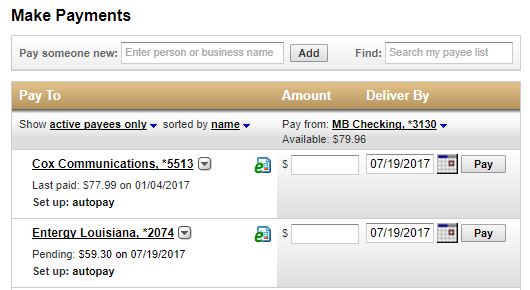
Questions or issues regarding payment processing:
Payments are processed by Metavante.
Metavante can be contacted directly at (800) 823-7555.
Examples of issues to address with Metavante:
- Questions concerning general to specific Bill Pay processing issues. When contacting Customer Support about a specific payment, please have your confirmation number available.
- Stop payment requests.
- Any transaction that returns a confirmation indicating an unsuccessful status.
- Unable to add an electronic payee due to an unsupported account number format. Be aware that you may use the manual option to set up such a payee, although the payee will be paid by check.
