Why Your Business Should Embrace ACH Bill Pay with QuickBooks
Hey there, fellow business owner! Are you still writing paper checks and manually recording transactions? Let me tell you – there’s a better way to manage your vendor payments, and it’s called ACH bill pay through QuickBooks. As someone who has struggled with payment processing for years, I’ve discovered that QuickBooks offers powerful solutions that can save you time, reduce errors, and keep your business finances organized.
In today’s digital-first business environment, electronic payments have become the norm rather than the exception ACH (Automated Clearing House) payments represent one of the most efficient ways to transfer money directly from your bank account to your vendors’ accounts And when integrated with QuickBooks, the process becomes even smoother.
But before we dive deeper let’s clarify what ACH bill pay actually is and why it matters for your business operations.
What is ACH Bill Pay in QuickBooks?
ACH bill pay allows businesses to pay vendors electronically through the Automated Clearing House network, directly from their bank accounts When you use QuickBooks for ACH payments, you’re essentially setting up a system where
- Payments are processed electronically rather than via paper checks
- Money moves directly between bank accounts
- Transaction records are automatically created in your QuickBooks accounting system
- Payment processing is faster than traditional check payments
- The entire process can be managed within your familiar QuickBooks interface
For small and medium-sized businesses, this represents a significant upgrade from manual payment methods, offering greater efficiency and accuracy in financial operations.
Options for ACH Bill Pay in QuickBooks
When it comes to paying bills via ACH in QuickBooks, you have several options available. Let’s explore each one:
1. QuickBooks Online Bill Pay
QuickBooks Online works together with Online Bill Pay to provide a seamless experience for making electronic payments. This feature allows you to:
- Pay bills electronically directly within QuickBooks Online
- Transfer funds via ACH (bank transfer) or send paper checks if needed
- Automatically record payment transactions in your QuickBooks accounting system
To get started with Online Bill Pay, you’ll need to sign up through the Apps menu in QuickBooks. Here’s how:
- Open QuickBooks and go to the Apps menu
- Search for “Bill Pay” in the search field
- Select “Bill Pay” for the QuickBooks Online app card
- Click “Get Bill Pay”
- On the Learn More page, select “Get Started”
- Enter your company information and click Next
- Follow prompts to connect your bank account
- Enter your personal information
- Complete the identity verification questions
While there’s no monthly subscription fee for this service, be aware that transaction fees apply for each payment processed.
2. Melio Integration
Another popular option mentioned in the QuickBooks community is Melio. According to community experts, you can:
- Sign up for a separate Melio account that integrates with QuickBooks Online
- Process ACH payments to vendors for free
- Sync payment data automatically with your QuickBooks account
Melio offers a compelling pricing structure that makes it attractive for businesses looking to minimize transaction costs.
3. Veem Integration
Veem is another third-party option that integrates with QuickBooks. While specific details weren’t provided in our source material, it’s worth exploring as an alternative payment solution, especially if other options aren’t meeting your needs.
Common Challenges with QuickBooks ACH Bill Pay
Despite the benefits, users sometimes encounter challenges when implementing ACH bill pay in QuickBooks. Let’s address some of the most common issues:
Visibility of Payees
One user reported an interesting problem where not all payees were visible when the online payment mode was turned on:
“When Online payment mode is off, all payees due appear (47). But when Online payment mode is on, only 38 payees due appear.”
This could be due to certain vendors not having proper setup for online payments. In such cases, contacting QuickBooks support for account validation is recommended.
Integration Issues
Some users have reported difficulties with third-party integrations. For instance, one user mentioned:
“I signed up for a Melio account… and it didn’t sync with QuickBooks Online… so Melio wasn’t the solution either.”
In this particular case, the issue was eventually identified as the customer’s bank blocking transactions with QuickBooks, rather than a problem with the software itself.
Rejected ACH Payments
Rejected ACH payments can occur for various reasons, including insufficient funds, incorrect bank information, or bank security measures. QuickBooks provides resources for troubleshooting rejected ACH payments, which can help resolve these issues.
Best Practices for Using QuickBooks ACH Bill Pay
To make the most of ACH bill pay in QuickBooks, follow these best practices:
-
Verify vendor information: Ensure all bank account details for vendors are accurate before initiating payments to avoid rejections.
-
Set up payment schedules: Take advantage of scheduling features to pay bills on time and manage cash flow effectively.
-
Reconcile regularly: Even though transactions are recorded automatically, regular reconciliation helps catch any discrepancies.
-
Monitor transaction fees: Keep track of transaction costs to ensure the service remains cost-effective for your business.
-
Use chat support when needed: Multiple users have reported better results using QuickBooks’ chat support rather than phone support for resolving issues.
-
Check bank compatibility: Confirm that your bank doesn’t block QuickBooks transactions before setting up the service.
Setting Up Vendor Information for ACH Payments
To successfully pay vendors via ACH, you’ll need to properly set up their information in QuickBooks. Here’s what you’ll need:
- Vendor’s legal business name
- Bank account number
- Bank routing number
- Bank account type (checking or savings)
- Contact information
It’s a good idea to double-check this information with your vendors to avoid payment issues. Many businesses now include their ACH payment details on their invoices, making the setup process easier.
Paying Multiple Vendor Invoices with One ACH Payment
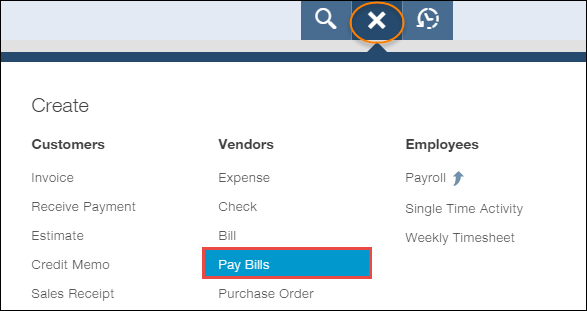
One of the most convenient features of QuickBooks ACH bill pay is the ability to pay multiple vendor invoices with a single payment. This is how you can do it:
- Select the “+ New” button
- Under “VENDORS,” click “Pay bills”
- Check all the vendors you want to pay
- Hit “Schedule payment online”
- Follow the onscreen steps, then choose ACH payment
This batching capability saves time and reduces the number of transactions you need to process, potentially saving on transaction fees.
The Benefits of Switching to ACH Bill Pay
Making the switch from manual payments to ACH bill pay through QuickBooks offers numerous advantages:
Time Savings
No more writing checks, stuffing envelopes, or making trips to the post office. The entire payment process can be completed with a few clicks from your computer.
Improved Accuracy
Automated payment processing reduces human error in recording transactions. When payments are processed through QuickBooks, the system automatically creates accurate transaction records.
Better Cash Flow Management
With electronic payments, you have greater control over exactly when funds leave your account. This precision helps with cash flow planning and management.
Reduced Costs
While there are transaction fees for ACH payments, they’re typically lower than the combined costs of paper checks, postage, and the labor involved in manual payment processing.
Environmental Benefits
Electronic payments eliminate paper waste associated with traditional check payments, making ACH a more environmentally friendly option.
Customer Experiences with QuickBooks ACH Bill Pay
Customer reviews of the QuickBooks integration with payment systems reveal a mixed bag of experiences. While some users find the system works well for their needs, others have encountered significant challenges.
One frustrated user reported:
“This app is HOT GARBAGE, and no one wants to take responsibility for it. It intermittently fails to receive sales data AND records duplicate data.”
Another mentioned support issues:
“Very unreliable… Quickbooks support is worthless, they told me i have to contact Shopify. The app is made by Intuit, it is their app, but they refuse to support it.”
However, Intuit has responded to some of these concerns, stating:
“Thank you for providing the feedback. We will reach out directly, the app is supported by Intuit and we apologize you were misinformed while contacting support.”
These mixed reviews suggest that while QuickBooks ACH bill pay offers significant benefits, implementation may require patience and occasional troubleshooting.
Comparing QuickBooks ACH Bill Pay Options
To help you choose the right solution for your business, here’s a comparison of the main ACH bill pay options:
| Feature | QuickBooks Online Bill Pay | Melio Integration | Veem Integration |
|---|---|---|---|
| Cost | Transaction fees apply | Free ACH payments | Varies |
| Integration | Native integration | Third-party app | Third-party app |
| Setup Process | Through QuickBooks Apps menu | Separate account required | Separate account required |
| Support | Direct QuickBooks support | Separate support system | Separate support system |
| Payment Options | ACH and paper checks | Multiple payment methods | Multiple payment methods |
Troubleshooting QuickBooks ACH Bill Pay Issues
If you encounter problems with your QuickBooks ACH bill pay setup, try these troubleshooting steps:
-
Verify your payment account setup: Ensure you’ve properly signed up for QuickBooks Payments service. Check this in Accounts and Settings > Payments > Merchant details.
-
Use incognito mode: Browser cache issues sometimes cause strange behaviors. Try accessing QuickBooks through incognito mode:
- Google Chrome: press Ctrl + Shift + N
- Mozilla Firefox: press Ctrl + Shift + P
- Microsoft Edge: press Ctrl + Shift + N
- Safari: press Command + Shift + N
-
Clear your browser cache: If incognito mode resolves the issue, clearing your regular browser’s cache might fix the problem permanently.
-
Contact Merchant support: For persistent issues, reach out to the QuickBooks Merchant support team who can access your account securely and help resolve payment-related problems.
-
Check for system updates: Sometimes issues occur due to pending system updates. Make sure your QuickBooks is running the latest version.
Is QuickBooks ACH Bill Pay Right for Your Business?
While ACH bill pay through QuickBooks offers significant advantages, it may not be the perfect solution for every business. Consider these factors when deciding:
-
Transaction volume: If you process numerous vendor payments monthly, the efficiency gains likely outweigh any transaction costs.
-
Technical comfort: Implementation requires some technical setup and troubleshooting skills.
-
Vendor preferences: Some vendors may not be set up to receive ACH payments or might prefer other payment methods.
-
Bank compatibility: As we’ve seen, some banks may block transactions with QuickBooks, requiring alternative solutions.
-
Integration needs: Consider whether you need integration with other systems like Shopify or other e-commerce platforms.
ACH bill pay through QuickBooks represents an important step toward modernizing your business financial operations. While implementation may have its challenges, the long-term benefits of efficiency, accuracy, and better financial management make it worth considering.
Whether you choose QuickBooks Online Bill Pay, Melio, Veem, or another integration, moving away from manual payment processes puts your business in a stronger position to scale and grow. The ability to automate payments, reduce errors, and maintain better financial records creates a foundation for better business decision-making.
I’ve personally found that despite occasional frustrations with technical issues, the overall impact of switching to electronic payments has been overwhelmingly positive for my business operations. The time saved alone has allowed me to focus more on growth strategies rather than administrative tasks.
Have you tried QuickBooks ACH bill pay? What has your experience been like? I’d love to hear about your journey with digital payments in the comments below!
FAQs About QuickBooks ACH Bill Pay
Q: Is there a monthly fee for using QuickBooks ACH bill pay?
A: There’s no monthly subscription fee for the Online Bill Pay service, but transaction fees apply for each payment processed.
Q: Can I pay multiple vendors with one ACH transaction?
A: Yes, QuickBooks allows you to select multiple vendors and pay them in a single batch payment process.
Q: How long does it take for ACH payments to process?
A: Typically, ACH payments take 1-3 business days to process, which is faster than traditional paper checks.
Q: What information do I need to set up a vendor for ACH payments?
A: You’ll need the vendor’s legal business name, bank account number, routing number, account type, and contact information.
Q: Can I schedule recurring ACH payments to vendors?
A: Yes, QuickBooks allows you to set up scheduled payments for recurring bills, helping you maintain consistent payment schedules.