With MyChart, you can manage and pay your medical bills, apply online for financial assistance, sign up for paperless billing, get connected to payment plan options, and review insurance claims for services.
Looking to figure out how to pay your medical bills through the MyChart app? You’re not alone! Many of us struggle with managing healthcare payments, but MyChart makes it pretty straightforward once you know the steps. I’ll walk you through everything you need to know about bill pay on the MyChart app.
What is MyChart?
MyChart is a patient portal developed by Epic Systems that connects you to your medical information. It’s used by many healthcare organizations like Premier Health to give patients easy access to their medical records and services. With MyChart you can
- Message your doctor
- Schedule appointments
- Review test results
- Refill prescriptions
- Pay your medical bills
- And much more!
The mobile app gives you all these features on the go, making it super convenient to manage your healthcare from anywhere.
Getting Started with Bill Pay on MyChart
Step 1: Login to the MyChart App
First things first, you’ll need to download the MyChart app if you haven’t already. It’s available for both iOS and Android devices.
- Open the MyChart app on your smartphone or tablet
- Enter your MyChart username and password
- If you’ve set up biometric login, you can use Face ID or fingerprint for quicker access
Step 2: Navigate to the Billing Section
Once you’re logged in, you’ll land on your home dashboard. From here:
- Tap the three-line menu icon in the upper left corner
- Look through the menu options and select “Billing”
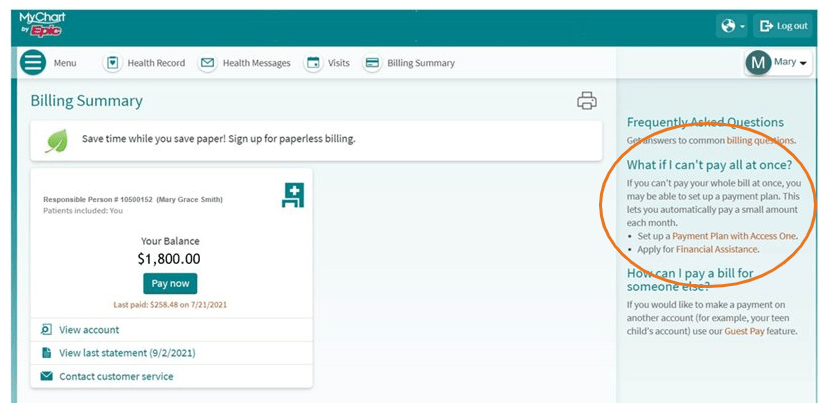
- This will take you to your billing summary where you can see your account balance
Step 3: Select the Account to Pay
On the billing summary screen, you’ll see any accounts with outstanding balances. Most people just have one overall account, but you might have separate balances for different facilities or providers within the same healthcare system.
Tap on the account you want to make a payment towards to see the details.
Step 4: Make Your Payment
After selecting an account, you’ll see the billing details including charges, insurance payments, and your remaining balance.
- Tap the “Pay Now” button
- The system will automatically show the full amount due, but you can change this if you want to make a partial payment
- Enter the payment amount you wish to pay
- Choose your payment method:
- Use a card you’ve saved previously
- Add a new credit/debit card
- Pay using a bank account
Step 5: Complete the Transaction
- Review all the payment details to make sure everything is correct
- Tap the “Pay” button to submit your payment
- Wait a moment while the system processes the transaction
- You’ll receive a confirmation notification when the payment goes through successfully
- The app will typically send a receipt to your email with the payment confirmation number
And that’s it! You’ve successfully paid your medical bill using the MyChart app.
Premier Health MyChart Bill Pay Features
If you’re a Premier Health patient, their MyChart system offers some specific billing features worth knowing about:
- You can make credit card payments directly and securely through MyChart to any hospital or physician office accounts you have with Premier Health
- There’s an option to link to another secure site that allows you to make online payments using a checking account
- You can send electronic messages to Customer Service with questions about your bill (they’ll respond within two business days)
- For physician office bills, you can set up payment plans using a credit card directly in MyChart
- For hospital bills, you’ll need to call to set up a payment plan (this info is provided on the Account Details screen)
Premier Health also provides a helpful video explaining MyChart Bill Pay that you can watch for additional guidance.
Tips for Using MyChart Bill Pay
I’ve been using MyChart for a while now, and here are some tips that have made the process easier:
Have Your Information Ready
Before you start the payment process, make sure you have your:
- Account number or invoice number handy
- Payment method details ready
Save Time with These Features
- Setup automatic payments: Great for recurring bills or payment plans
- Enable biometric login: Use Touch ID or Face ID for quick access
- Save payment accounts: Avoid re-entering your card details every time
- Opt into paperless billing: Get notified immediately when a new bill is ready
Troubleshooting Common Issues
Sometimes things don’t go as planned. Here’s what to do if:
- You don’t see your bill: Check with your provider to ensure it’s been posted to MyChart
- Payment won’t process: Verify your payment details and try again, or use a different payment method
- You need a payment plan: For Premier Health, remember that physician office payment plans can be set up in MyChart, while hospital bills require a phone call
Why Use MyChart for Bill Pay?
There are tons of benefits to paying your medical bills through the MyChart app:
- Convenience: Pay anytime, anywhere from your phone
- Security: Your payment data is encrypted and protected
- Organization: Easily track all your balances and payment history in one place
- Speed: Complete payments in just a few taps
- Notifications: Get reminders when bills are due
- Biometric Access: Quick login with Touch/Face ID
- Payment Plans: Set up recurring payments for larger bills
- No Fees: There’s typically no convenience fee to pay through the app
- User-Friendly Interface: Simple and intuitive to use
- Paperless Option: Reduce clutter and be more eco-friendly
Frequently Asked Questions
Can I pay someone else’s bill through my MyChart?
If you have proxy access to someone else’s MyChart account (like a family member or dependent), you may be able to pay their bills. This depends on the level of access you’ve been granted.
Will I get a receipt for my payment?
Yes! MyChart typically sends a confirmation receipt to your email after successful payment processing.
Can I set up a payment plan for all my bills?
This depends on your healthcare provider. With Premier Health, for example, you can set up payment plans for physician bills directly in MyChart, but hospital bills require a phone call.
Is there a fee for paying through MyChart?
Most healthcare organizations don’t charge extra fees for paying through MyChart, making it a cost-effective option compared to some other payment methods.
What if I need to cancel a payment?
If you need to cancel a payment, contact your healthcare provider’s billing department immediately. Once payments are processed, they may be difficult to reverse.
Final Thoughts
Paying medical bills is never fun, but at least the MyChart app makes the process pretty painless. I’ve found it to be one of the easiest ways to keep track of and pay my healthcare expenses. The ability to make payments anytime, anywhere has helped me avoid late fees and keep my accounts current.
If you haven’t tried using the bill pay feature on the MyChart app yet, I highly recommend giving it a shot. The time you’ll save not having to mail checks or make phone calls is definitely worth the few minutes it takes to set up.
Have you had experience paying bills through MyChart? Was it as easy as described here? We’d love to hear your experiences in the comments!
Remember that different healthcare systems might have slight variations in their MyChart implementation, so always check with your specific provider if you have questions about their bill pay process.
Happy bill paying! (Well, as happy as paying bills can be, right?)
How To Opt In
- Text START to 56867.
- Ask a staff member to help you opt in.
- Set your communication preferences in MyChart under Account Settings.
*By opting in, you will receive updates related to your Community Health Network appointments, your MyChart account and billing notifications to the phone number used to opt in. Message frequency may vary. Message and data rates may apply. For help, text HELP.
MyChart users are automatically enrolled in paperless billing.
Prefer paper? If you prefer to receive paper statements, you may opt out of paperless billing:
- Log in to MyChart (desktop or app)
- In the main menu, go to Billing Summary.
- Click on the “cancel paperless billing” link.
To view your billing statements or make a payment go to Your Menu > Billing Summary.
To update your notification preferences for electronic billing statements:
- In the main menu, go to Account Settings > Communication Preferences.
- Select Billing
- For Statements, choose preferred method(s) to receive statements (email, text).
Get a head start! You can switch to paperless billing any time. Go to Your Menu > Billing Summary and look for the green leaf!
View Outstanding Balance/Make a Payment
To see the outstanding account balance for any of your accounts, go to Your Menu > Billing Summary.
Here, youll see all of your accounts with links to individual statements and bill payment features. To view additional information about an account, click the “View balance details” link.
- Click Pay for the account on which you want to make a payment.
- Enter the amount to pay along with your credit card or bank account information. Click Continue.
- Review your payment information and click Submit Payment.
Financial Assistance – Apply Online
Apply for financial assistance online through MyChart. To get started, click below (login required). Or from MyChart, go to Menu > Financial Assistance.
Securely submit details of your income/expenses and upload your documentation. As your application is processed, youll get status updates through your MyChart account. For help, see our Tips & Tricks.
Get an immediate, self-serve price estimate through MyChart – no account or login required!
- Browse hundreds of common medical services
- Get estimates based on insurance
- Unlimited estimates
- Private results can be emailed
To view current claims for services covered by insurance, in the main menu go to Insurance > Claims.
- Select a claim to view details for it, such as the servicing provider and claim status.
- If you have a question about the claim, click Customer Service Request to send a message to customer service staff.
To view your insurance co-pay amounts, in the main menu go to Insurance > Insurance Summary.
- Click on “View coverage details” to see co-pay amounts for services.
New! Bill Pay Texts
Our new, two-way secure messaging gives you a simple way to manage your health. Opt in* for these benefits:
- Pay bills securely
- Receive appointment reminders
- Confirm or cancel appointments
