Hey there! If you’re a Schwab account holder looking to streamline your bill payment process, you’re in the right place. I’ve been using Charles Schwab’s banking services for years, and their Bill Pay feature has literally saved me hours of time each month. Today, I’m gonna break down everything you need to know about Charles Schwab Bill Pay – from setting it up to making the most of its features.
What is Charles Schwab Bill Pay?
Charles Schwab Bill Pay is a convenient service offered by Charles Schwab Bank that allows you to pay your personal and business expenses directly from your Schwab banking or brokerage accounts. Instead of juggling multiple payment platforms or writing checks (who even does that anymore?) you can manage all your bills in one place.
The service is provided through Charles Schwab Bank, SSB, sometimes using Charles Schwab & Co., Inc. as its agent for certain program services. The actual service provider is CheckFree Services Corporation, which is an indirect wholly owned subsidiary of Fiserv Solutions, Inc.
Why Use Charles Schwab Bill Pay?
Before we dive into the how-to let’s talk about why you might want to use this service
- Convenience: Pay all your bills from one central location
- Time-saving: No more logging into multiple websites or mailing checks
- Organization: Keep track of all your payments in one place
- Flexibility: Pay both personal and business expenses
- Security: Backed by Schwab’s robust security measures
- Cost-effective: The service is free for Schwab account holders
How to Access Bill Pay
Getting started with Bill Pay is super easy:
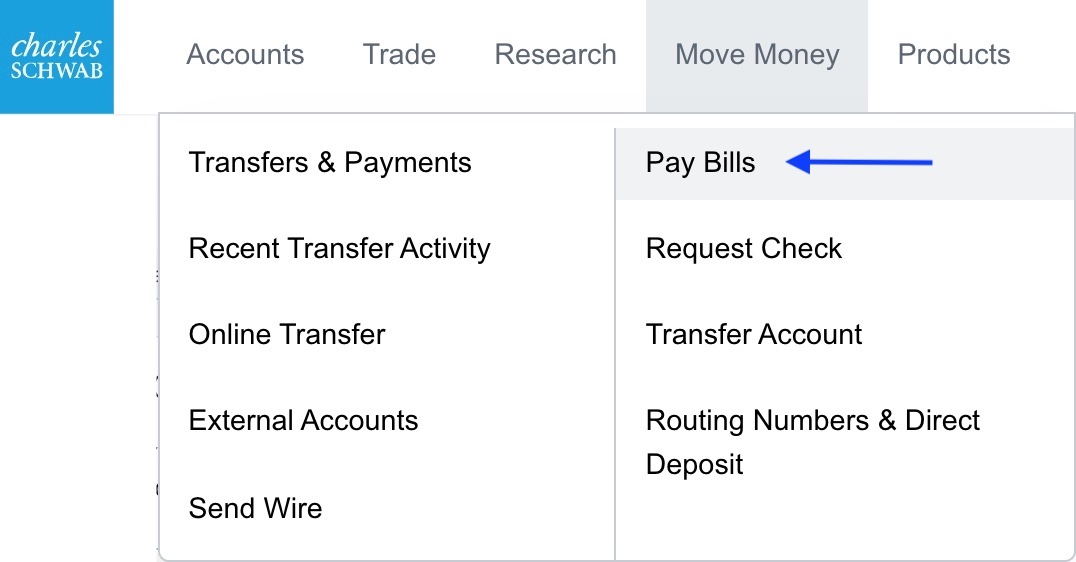
- Log in to your account at Schwab.com
- Click on “Move Money” in the navigation
- Select “Pay Bills”
- Click the green “Pay Bills” button
That’s it! You’re now in the Bill Pay interface where all the magic happens.
Understanding the Bill Pay Interface
The Bill Pay service has two main tabs that help you manage your payments:
1. Pay Bills Tab
This is your main control center where you can
- Add and find payees
- View unpaid bills
- Make payments
- Monitor account balances
- Track recent activity
2. Activity Tab
Here you can review:
- Scheduled payments
- Processing payments
- Past payments
Setting Up Payees
Before you can start paying bills, you need to add your billers (or “payees” in Schwab-speak). Here’s how:
- From the Bill Pay dashboard, look for the option to add a new payee
- Enter the necessary information about the company or person you want to pay
- Save the payee to your list
You can add various types of payees:
- Utility companies
- Credit card providers
- Mortgage lenders
- Insurance companies
- Individual people
Making Payments: The Different Ways
One of the things I love about Schwab’s Bill Pay is the flexibility. You can make payments in several different ways:
Single Payments
For one-time or occasional bills:
- Find the payee in your list or use the search function
- Click on the payee name
- Enter the payment amount and date
- Confirm and schedule the payment
Multipay Feature
Need to pay multiple bills at once? The Multipay feature has got you covered:
- Select multiple payees from your list
- Click “Pay selected bills”
- Enter payment amounts and dates for each bill
- Review and click “Pay selected bills” to schedule all payments
- You’ll receive a confirmation page
This is honestly such a time-saver when you’re doing your monthly bill management all at once!
eBills
For certain companies, you can set up eBills, which are electronic versions of paper bills. These come with:
- Online statements
- Payment reminders
- Exact amount due
To set up eBills:
- Click on a payee
- Look for the eBill option
- Follow the prompts to set up electronic delivery
Autopay
If you’re like me and prone to forgetting due dates, the autopay feature is a lifesaver:
- Select a payee
- Look for the autopay option
- Set your preferences (amount, frequency, etc.)
- Confirm setup
Once autopay is set up, payments will be made automatically according to your instructions. You can always edit or cancel an autopay at any time.
Managing Your Bill Payments
Organizing Payees
Schwab Bill Pay lets you organize payees in ways that make sense for your financial life:
- Alphabetical sorting: Find payees quickly by name
- Date sorting: Sort by payment date
- Grouping: Create groups for different expense categories (like “Household” or “Business”)
I personally use the grouping feature to separate my personal expenses from my small business costs, which makes tax time way easier!
Unpaid Bills Section
The “Unpaid bills” section serves as a reminder center, showing you which bills are coming due soon. This section only appears when you actually have bills due, so don’t worry if you don’t see it right away.
Recent Activity
The “Recent activity” section shows you:
- Scheduled payments
- Payments being processed
- Recently completed payments
This gives you a quick overview of your payment status without having to dig through transaction histories.
Searching Past Payments
Need to find an old payment? Here’s how:
- Go to the “Activity” tab
- Use the search bar to find payments by payee name
- Alternatively, use the filter options to narrow down results
Advanced Bill Pay Features
Bill Reminders
If you prefer to review bills before paying them (rather than using autopay), you can set up reminders:
- Select a payee
- Look for the bill reminder option
- Choose when you want to be notified
- Save your preferences
Editing or Canceling Payments
Changed your mind or made a mistake? No problem:
- Find the payment in the “Recent activity” section or “Activity” tab
- Click on the payment
- Select “Edit” or “Cancel”
- Follow the prompts to modify or cancel the payment
Viewing and Managing Autopay
To check on your autopay settings:
- Go to the “Activity” tab
- Look for any active autopays
- Click “View autopay” for details
- Edit or delete the autopay as needed
Pro Tips from a Longtime User
After using Schwab Bill Pay for several years, I’ve discovered some tricks that make it even more useful:
Schedule Payments Strategically
I usually schedule my payments 3-5 business days before the due date. This gives enough buffer time for processing while still keeping my money in my account as long as possible.
Use the How-To Feature
Schwab has built-in help right where you need it. Look for question mark icons throughout the interface that provide step-by-step instructions for various tasks.
Information Icons
See those little info icons next to headers? Hover over them for additional information about that specific feature. Super helpful when you’re still learning the system!
Combine with Schwab Mobile
While the web interface is comprehensive, the mobile app lets you handle basic bill payments on the go. Perfect for those “oh no, I forgot to pay that!” moments.
Troubleshooting Common Issues
Payment Delays
Remember that electronic payments aren’t always instant. Generally:
- Electronic payments take 1-2 business days
- Check payments can take 5-7 business days
Missing Payees
If you can’t find a payee you’ve previously added:
- Check different payee groups
- Try searching by partial name
- Verify you’re looking in the right account
Payment Errors
If a payment doesn’t go through:
- Verify you have sufficient funds
- Check that the payee information is correct
- Ensure your account is in good standing
Security Considerations
Schwab takes security seriously, but it’s always good to follow best practices:
- Regularly review your scheduled and past payments
- Set up alerts for large transactions
- Never share your login credentials
- Use a strong, unique password for your Schwab account
- Enable two-factor authentication if available
Who Should Use Charles Schwab Bill Pay?
Charles Schwab Bill Pay is ideal for:
- Schwab banking or brokerage account holders
- People who pay multiple bills each month
- Anyone looking to consolidate their financial management
- Small business owners who want to separate personal and business expenses
- Those who want to reduce paper mail and go digital
Who Might Want Alternative Solutions?
While Schwab Bill Pay is great, it might not be for everyone:
- People who don’t have Schwab accounts (obviously!)
- Those who prefer using individual companies’ autopay features
- Individuals who need specialized payment features not offered by Schwab
Final Thoughts
Charles Schwab Bill Pay has honestly been a game-changer for my financial organization. What used to take me hours each month now takes minutes, and I haven’t missed a payment in years.
The interface is straightforward, the features are robust, and the convenience factor is off the charts. Plus, being able to pay directly from my Schwab accounts means fewer transfers between accounts and better visibility into my overall financial picture.
If you’re already a Schwab customer and aren’t using the Bill Pay feature, you’re seriously missing out on one of the best perks of your account!
FAQs About Charles Schwab Bill Pay
Is there a fee to use Charles Schwab Bill Pay?
Nope! Bill Pay is a free service for Schwab banking and brokerage account holders.
How long does it take for payments to process?
Electronic payments typically process within 1-2 business days, while check payments may take 5-7 business days.
Can I schedule recurring payments?
Absolutely! You can set up autopay for regular bills with fixed or variable amounts.
Is there a limit to how many bills I can pay?
There’s no practical limit to the number of payees or payments you can manage through the system.
What if I need to stop a payment?
You can cancel scheduled payments through the Activity tab, though payments already in processing may not be able to be stopped.
Can I use Bill Pay from the Schwab mobile app?
Yes, the Bill Pay feature is available through both the website and the mobile app.
Is Bill Pay available for all Schwab accounts?
Bill Pay is available for Schwab banking accounts and brokerage accounts, though specific eligibility may vary.
Remember, managing your finances shouldn’t be complicated! With tools like Charles Schwab Bill Pay, you can simplify your bill payment process and focus on the more important things in life – like figuring out where all your money goes each month (still working on that one myself!).
Bill Pay As Easy as 1-2-3
Managing your Les Schwab retail credit account has never been easier. You can make your monthly payment online, by phone or by mail.
*By clicking to pay online, you will leave Les Schwab’s website and be redirected to a third party website.
Online bill pay is a secure, convenient way to make your monthly payment so you’re always on time. All you need is your Les Schwab retail account number (shown on your statement), the phone number associated with your account, and either your bank account number or a credit/debit card number. You can make a single payment or set up recurring payments, on the payment dates you choose. It’s easy — log in to get started.
Paying by phone is quick, easy and secure. Just call toll-free 1-844-486-52521-844-486-5252 any time, day or night. Have your Les Schwab retail account number (shown on your statement) ready, the phone number associated with your account, along with either your bank account number or credit/ debit card number. You can make a single payment on the payment date you choose.
Each month, we send you a Les Schwab retail credit account statement that shows your balance and the minimum payment required. Return your payment in the envelope provided with your billing statement. Or drop your payment off at the closest Les Schwab store.
- If you’ve just opened your credit account, or if you previously didn’t have a balance, your account can be accessed after you receive your first paper statement following your new charge. What payment methods are accepted?
- We accept Visa, MasterCard, Discover, American Express and debit cards. You can also pay directly from your savings or checking account. Is there a fee for using the online or automated phone payment services?
- No, as an added value to our customers, there are no fees for using these services. Do I need to enroll in order to make a payment?
- No, you don’t need to enroll to make a payment. You can make a one-time payment online or via our automated phone payment service. Will I receive a reminder that I have a payment due?
- Yes, if you enroll in our online payment service, you will receive an email reminding you that a payment is due. Why didn’t I receive an email notification or confirmation?
- Please check your junk email folder. It is possible that the spam filters on your email account have blocked our messages. Can I set up recurring monthly payments?
- Yes, you can set up monthly recurring payments. From our login screen, choose “Sign Up Now” to schedule recurring payments. How do I stop recurring payments?
- To cancel a recurring payment, you can login and click un-enroll at the bottom of your screen. How will I know that my payment was recorded?
- You will receive a confirmation number once your payment has been successfully recorded. We recommend that you save your payment confirmation number for future reference. When will my payment be posted to my Les Schwab retail credit account?
- Payments received before 5 p.m. Pacific Time will be posted the same business day. Payments received after 5 p.m. Pacific Time will be posted the next business day. Payments made on Sunday or bank holidays will be posted on the next business day. Who can I contact with questions regarding my Les Schwab retail credit account?
- Customer service representatives are available to help with your Les Schwab retail credit account. Please call 1-844-486-52521-844-486-5252 Monday–Friday 7:30 a.m.–5:00 p.m. Pacific Time, or email [email protected]. Can I pay online from my smartphone or another mobile device?
- Yes, you can pay online using your smartphone or mobile device. What do I need to make a payment?
- You will need your Les Schwab retail credit account number, the last four digits of the telephone number associated with your Les Schwab retail credit account, and your form of payment.
Please choose a language
Please choose a language
Your chains have not been purchased.
Starting an appointment will clear chains from your shopping cart.
