Hey there, fellow TECO customers! Are you tired of writing checks and hunting for stamps every month? I’ve been there too. Today, I’m gonna share everything I know about paying your Tampa Electric bill online – the easy way!
As someone who’s been a Tampa Electric customer for years, I’ve tried pretty much all their payment methods. Trust me, switching to online payments was a game-changer for my busy schedule. No more late fees because I forgot to mail the check!
Quick Summary: Your Tampa Electric Online Payment Options
Before diving into the details here’s a quick look at your main options
- TECO Account Portal – Free when using bank account
- KUBRA EZ-PAY – Convenience fee applies ($2.75 for residential)
- Auto Pay – Set it and forget it!
- Bank Bill Pay – Through your own bank
Let’s explore each of these in detail so you can choose what works best for you.
Option 1: Pay Through Your Online TECO Account (Recommended)
The most straightforward way to pay your Tampa Electric bill online is through their official account portal Here’s how
- Visit tecoaccount.com
- Log in with your username and password
- Once logged in, select “Pay Bill” from the menu
- Choose your payment method (bank account is FREE)
- Enter your payment information
- Review and confirm your payment
Pro Tip: When paying through your bank account (checking or savings), there’s NO convenience fee! This is why I personally prefer this method.
If you don’t have an account yet, no worries! Look for the “Register Account” option on the login page. You’ll need your account number from your bill to set it up.
Option 2: KUBRA EZ-PAY (No Registration Required)
Don’t want to create an account? Or maybe you need to make a quick one-time payment? KUBRA EZ-PAY is your friend.
- Go to KUBRA EZ-PAY
- Enter your TECO account number and zip code
- Follow the prompts to make your payment
Important Note: KUBRA EZ-PAY charges a convenience fee for their service:
- Residential accounts: $2.75 per $1,000 transaction
- Commercial accounts: $8.95 per $5,000 transaction
- Industrial accounts: $300 per $20,000 transaction
I’ve used this option a couple times when I was in a rush and couldn’t remember my TECO login. It works great in a pinch, but those fees do add up over time!
Option 3: Set Up Auto Pay (Never Miss a Payment)
If you’re forgetful like me, Auto Pay is your best friend. Here’s how to set it up:
- Log in to your TECO account
- Navigate to “Bills and Payments” in the menu
- Select “Enroll in Auto Pay”
- Choose your preferred payment method
- Set your preferences (payment date, etc.)
- Confirm and you’re all set!
With Auto Pay, your bill gets paid automatically each month on your selected date. You can choose to have the payment made on the due date or a few days before.
I switched to Auto Pay last year and honestly, it’s been amazing not having to worry about forgetting to pay my bill. Just make sure you have enough funds in your account on the payment date!
Option 4: Use Your Bank’s Bill Pay Service
Most banks offer their own bill pay services. You can set up Tampa Electric as a payee in your bank’s online portal.
This method works well if you prefer to keep all your bill payments in one place. However, it might take 3-5 business days for the payment to process, so plan accordingly.
Payment Methods Accepted Online
Tampa Electric accepts several payment methods through their online channels:
- Bank Account (ACH) – Free through TECO portal, fee applies on KUBRA
- Credit Cards – Visa, MasterCard, Discover, American Express (fees apply)
- Debit Cards – Most major debit cards (fees apply)
- Digital Wallets – Options vary (fees apply)
I typically use my checking account to avoid the extra fees, but it’s nice to have options when needed!
When Will My Payment Post?
This is important to know to avoid late fees! Here’s what to expect:
- TECO Account Portal: Payments typically post within 1-2 business days
- KUBRA EZ-PAY: Usually same-day or next-day processing
- Auto Pay: Posts on the scheduled date
- Bank Bill Pay: May take 3-5 business days to reach TECO
If you’re cutting it close to the due date, KUBRA EZ-PAY might be worth the convenience fee for faster processing.
Tips to Make Online Payments Even Easier
After years of paying my TECO bill online, here are some tips I’ve picked up:
1. Sign Up for Paperless Billing
When you combine online payments with paperless billing, you create the ultimate convenience combo! Plus, it’s better for the environment.
To enroll in paperless billing:
- Log in to your TECO account
- Go to “Billing Options”
- Select “Paperless Billing”
- Follow the prompts to confirm
2. Set Payment Reminders
If you don’t use Auto Pay, set up reminders on your phone or calendar. I recommend setting the reminder about 5 days before the due date to give yourself some wiggle room.
3. Keep Your Payment Info Updated
Nothing worse than a declined payment because your card expired! Make it a habit to update your payment information whenever you get a new card or change banks.
4. Check Your Email Regularly
If you’re enrolled in paperless billing, TECO will send your bill to your email. Make sure to check it regularly and keep your email address updated in your profile.
What If You’re Having Trouble Paying Your Bill?
We’ve all been there – sometimes money gets tight. Tampa Electric offers several assistance options:
- Payment Arrangements: Spread your balance over multiple payments
- Share Program: Financial assistance for qualified customers
- Budget Billing: Evens out your payments throughout the year
To explore these options, call TECO’s customer service at 1-888-223-0800 or log into your account and look under “Payment Assistance.”
Common Issues & Solutions When Paying Online
Even the best systems have hiccups sometimes. Here are some common issues and how to fix them:
Problem: Website Won’t Load
Solution: Try clearing your browser cache or using a different browser. Chrome and Firefox usually work well with TECO’s portal.
Problem: Payment Didn’t Process
Solution: Double-check your payment information and try again. If it still doesn’t work, try a different payment method or contact customer service.
Problem: Forgot Username/Password
Solution: Click on “Forgot Username” or “Forgot Password” on the login page. You’ll receive reset instructions via email.
Problem: Website Maintenance
Solution: Sometimes the website is down for maintenance. Try again later or use the KUBRA EZ-PAY option as a backup.
Is Paying Tampa Electric Bills Online Safe?
I get this question a lot from my older relatives! The answer is YES – paying your TECO bill online is secure. Both the official TECO portal and KUBRA EZ-PAY use encryption to protect your financial information.
That said, always make sure you’re on the legitimate website (check the URL!) and never share your login credentials with anyone.
Final Thoughts: Which Method Should You Choose?
After trying all the options, here’s my personal ranking:
- Auto Pay through TECO Account: Best for convenience, no fees when using bank account
- Manual payments through TECO Account: Good control, no fees with bank account
- KUBRA EZ-PAY: Best for quick payments without registration, but fees apply
- Bank Bill Pay: Good for consolidating all bills in one place, but slower processing
I personally use Auto Pay with my checking account, combined with paperless billing. I still get email notifications when my bill is ready and when payment is processed, so I always know what’s happening with my account.
Wrapping Up
Paying your Tampa Electric bill online doesn’t have to be complicated. Whether you prefer the set-it-and-forget-it approach of Auto Pay or the flexibility of making payments manually, TECO has options to fit your needs.
And remember – no matter which method you choose, paying online saves time, paper, and often helps you avoid late fees. It’s a win-win-win!
Frequently Asked Questions
Q: Can I pay my Tampa Electric bill by phone?
A: Yes! Call 1-888-223-0800 to pay by phone, but be aware that convenience fees may apply.
Q: How can I avoid the convenience fees when paying online?
A: Use the official TECO account portal and pay with your bank account (not a credit/debit card) to avoid fees.
Q: When is my Tampa Electric bill due?
A: Due dates vary by billing cycle. Check your bill or log into your online account to see your specific due date.
Q: Can I pay part of my bill now and the rest later?
A: Yes, you can make partial payments. However, the full amount must be paid by the due date to avoid late fees unless you’ve set up a payment arrangement.
Q: Does Tampa Electric accept PayPal or Venmo?
A: Currently, Tampa Electric does not directly accept PayPal or Venmo payments through their official channels.
Q: What should I do if I think there’s an error on my bill?
A: Contact Tampa Electric customer service at 1-888-223-0800 to discuss any billing discrepancies.
Q: Can I view my payment history online?
A: Yes, when logged into your TECO account, you can view your payment history under the billing section.
Q: Is there a mobile app for paying my TECO bill?
A: While there isn’t a dedicated mobile app, the TECO website is mobile-friendly and works well on smartphone browsers.
Happy bill paying, everyone! Remember, going digital isn’t just easier – it’s smarter too!
Pay Online. Interest free.
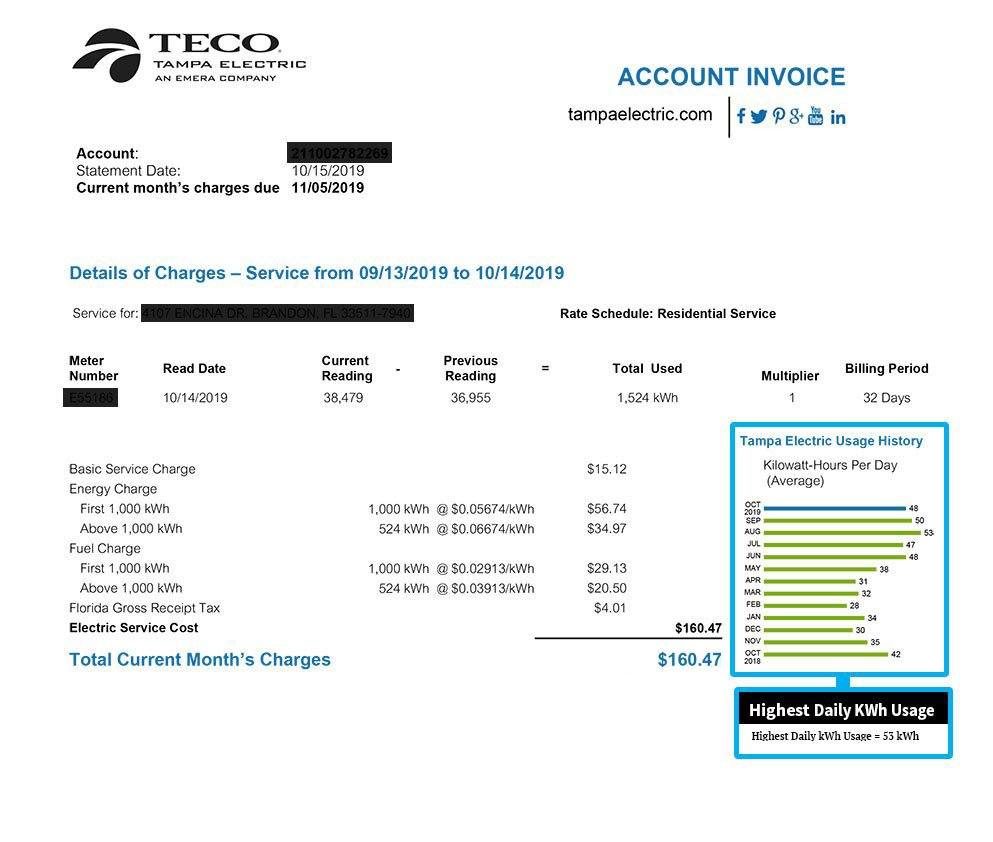
Ensure your bill looks like this to confirm payment to Tampa Electric. When paying Tampa Electric via Deferit, we verify bill legitimacy and payment details. All payments through Deferit to Tampa Electric are guaranteed. Deferit charges a monthly membership. An application fee may apply. If an application fee applies it will be presented to you prior to joining. No lock-ins. All payments are subject to a processing fee of $0.99. Deferit is not affiliated with Tampa Electric. The above is for educational purposes only.
Build your credit history
Each payment is reported to credit bureaus to help build credit history. A good credit score helps with better loans, credit cards and more!
